A simple, step-by-step guide for Windows 10 and Windows 11
Has your Windows desktop suddenly gone full-screen, with a bigger Start menu and chunky icons everywhere? If so, your PC has probably switched into Tablet Mode — a feature designed for touchscreen devices that can sometimes kick in by accident. The good news is that it’s easy to fix. This guide will walk you through exactly how to turn it off, whether you’re running Windows 10 or Windows 11.
NOTE Windows 10 and Windows 11 handle tablet mode differently. Jump to the section that matches your version of Windows.
Windows 10: How to Turn Off Tablet Mode
Windows 10 has a dedicated Tablet Mode toggle. There are two ways to switch it off.
Method 1: Use the Action Centre (Quickest)
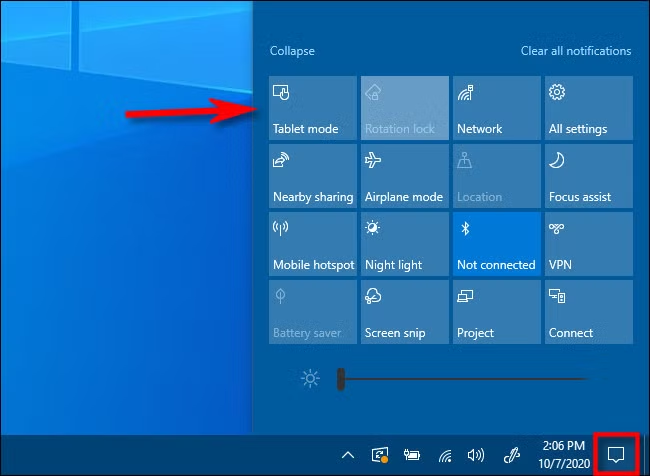
The Action Centre is the notification panel in the bottom-right corner of your screen — it looks like a speech bubble icon. This is the fastest way to toggle Tablet Mode on or off.
1. Click the speech bubble icon in the bottom-right corner of the taskbar to open the Action Centre. 2. Look for a tile labelled “Tablet mode” in the quick settings area at the bottom. 3. Click it once to turn Tablet Mode off. The tile will go grey when it’s disabled.
TIP If you can’t see the Tablet mode tile, it may have been removed by Windows (Microsoft removed it from some updates). Use Method 2 below instead.
Method 2: Turn It Off in Settings
If the Action Centre tile isn’t available, or you’d prefer to stop Tablet Mode from switching on automatically in future, go through Settings instead.
4. Press the Windows key + I on your keyboard to open Settings. 5. Click on “System”.
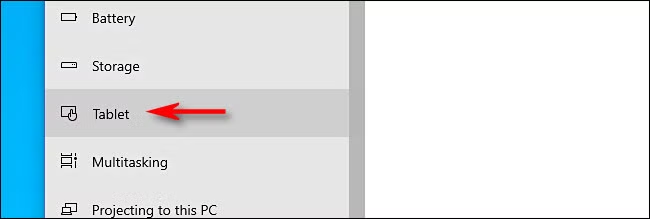
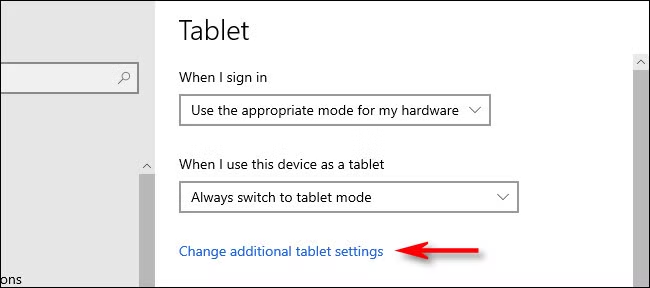
6. In the left-hand menu, click “Tablet”. 7. Click “Change additional tablet settings”.
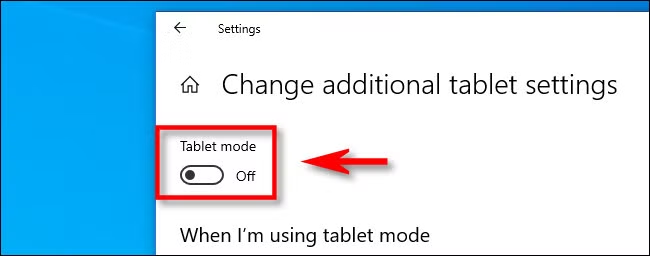
8. Find the “Tablet mode” toggle and switch it to Off.
Stop Windows 10 Switching Automatically
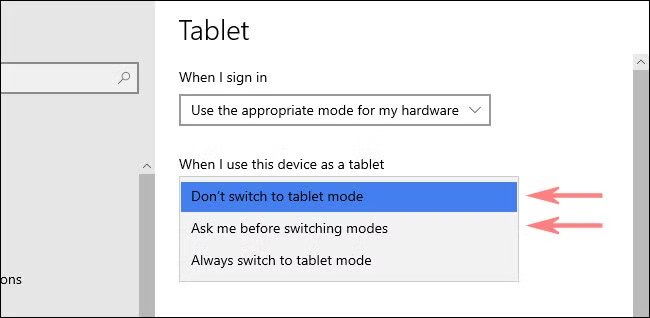
If you use a 2-in-1 laptop (one where you can detach or fold the keyboard), Windows 10 may switch into Tablet Mode automatically when you remove the keyboard. To stop this:
9. Go to Settings > System > Tablet. 10. Open the dropdown menu under “When I sign in”. 11. Choose “Don’t switch to tablet mode”.
This will prevent Windows from switching modes automatically, even if you detach the keyboard.
Windows 11: How to Exit Tablet Mode
Windows 11 works differently to Windows 10. Microsoft removed the dedicated Tablet Mode toggle for desktop and laptop computers. Instead, on touchscreen and 2-in-1 devices, the tablet-style layout switches on and off automatically depending on whether a keyboard is attached.
NOTE If your PC doesn’t have a touchscreen and you’re seeing a tablet-like layout, it’s more likely a display or settings issue rather than Tablet Mode itself.
If You Have a 2-in-1 or Detachable Keyboard
The quickest fix is simply to reattach or reconnect your keyboard. Windows 11 will automatically switch back to desktop mode when it detects a keyboard is connected.
• Attach the keyboard firmly until it clicks into place. • If using a Bluetooth keyboard, make sure it’s paired and switched on. • Give it a few seconds — the screen should switch back automatically.
If You Have a Flip-Screen Laptop
If your laptop has a screen that folds all the way back (like a 360° hinge), rotating the screen back to normal laptop position will exit the tablet layout.
If Windows 11 is Stuck in Tablet Mode
If the above steps don’t work, or your PC seems stuck in a tablet-style layout, try these fixes in order:
12. Restart your PC. This resolves most small glitches and is always worth trying first. 13. Check your keyboard connection. If the keyboard isn’t detected properly, Windows won’t switch back. Try unplugging and re-plugging it, or reconnecting via Bluetooth. 14. Check your display settings. Go to Settings > System > Display and make sure the screen orientation is set to Landscape, not Portrait. 15. Check for Windows Updates. Go to Settings > Windows Update and install any available updates. Microsoft sometimes fixes display and mode-switching bugs via updates.
16. Run a System File Check. If nothing else works, you may have a corrupted system file. Open the Start menu, search for Command Prompt, right-click it, and choose “Run as administrator”. Type sfc /scannow and press Enter. Windows will scan and repair any issues automatically
Quick Summary
Your Situation
What to Do
Windows 10 — quick fix
Click the notification icon (bottom-right) and tap the Tablet mode
tile
Windows 10 — via Settings
Settings > System > Tablet > Change additional tablet settings >
toggle Off
Windows 11 — 2-in-1 or
detachable
Reattach the keyboard and wait a few seconds
Windows 11 — flip-screen
laptop
Rotate the screen back to normal laptop position
Windows 11 — stuck in
tablet mode
Restart, check keyboard connection, check for Windows
Updates
Still stuck?We’re here to help.
If none of the above steps have resolved the issue, it’s possible there’s an underlying hardware or software fault. Get in touch with us at SkilledTech and we’ll get it sorted.