HOW TO OPEN A SHARED MAILBOX ON AN iPhone USING OUTLOOK APP
10th August 2026
If your business uses a shared inbox — something like info@yourcompany.co.uk or sales@yourcompany.co.uk — you can access it from your iPhone through the Outlook app, without needing a separate login or password. Here’s how to set it up.
Before you start: you’ll need to already have permission to access the shared mailbox. If you’re not sure whether you do, your IT provider can check and grant access in a couple of minutes.
Step 1: Sign in to your own account first
Open the Outlook app and make sure you’re signed into your own work email account. This has to be done first, as the shared mailbox is added on top of your own account rather than as a standalone login.
Step 2: Open the account menu
Tap either the Home icon, your profile picture (or initials) in the top-left corner of your inbox. This opens a side menu showing all your accounts.
Step 3: Tap “Add Account”
Near the bottom of the side menu, tap the Microsoft 365 icon with the “+” (or the envelope “+” icon, depending on your setup) to add an account.
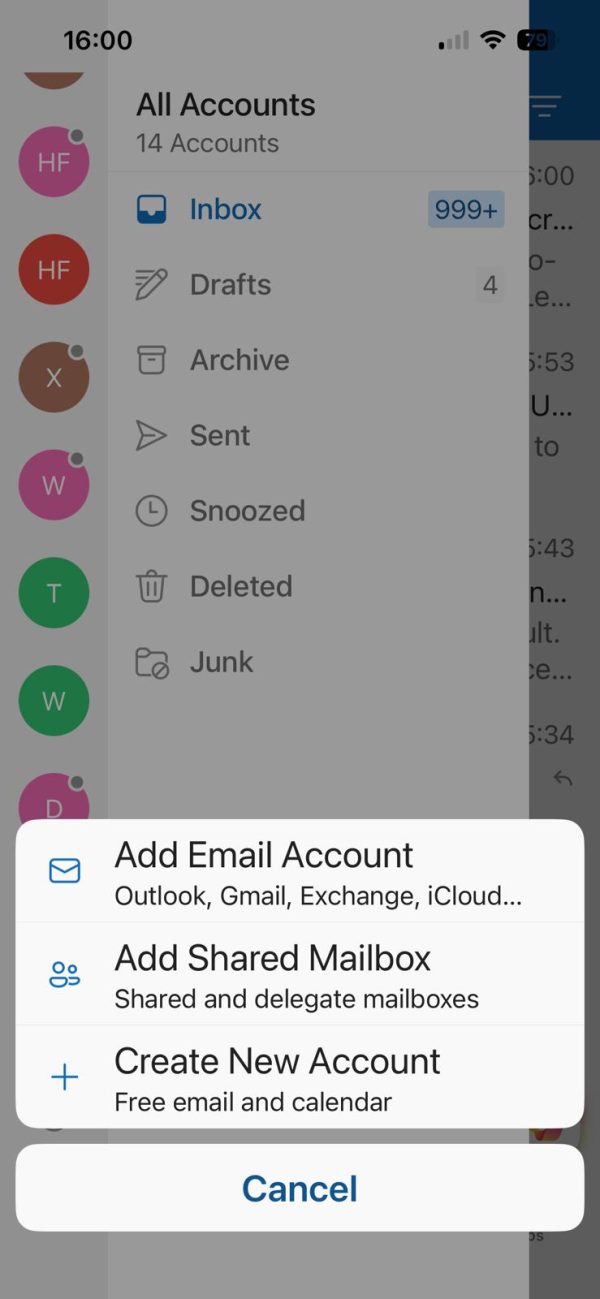
Step 4: Choose “Add Shared Mailbox”
A menu pops up with three options. Tap Add Shared Mailbox.
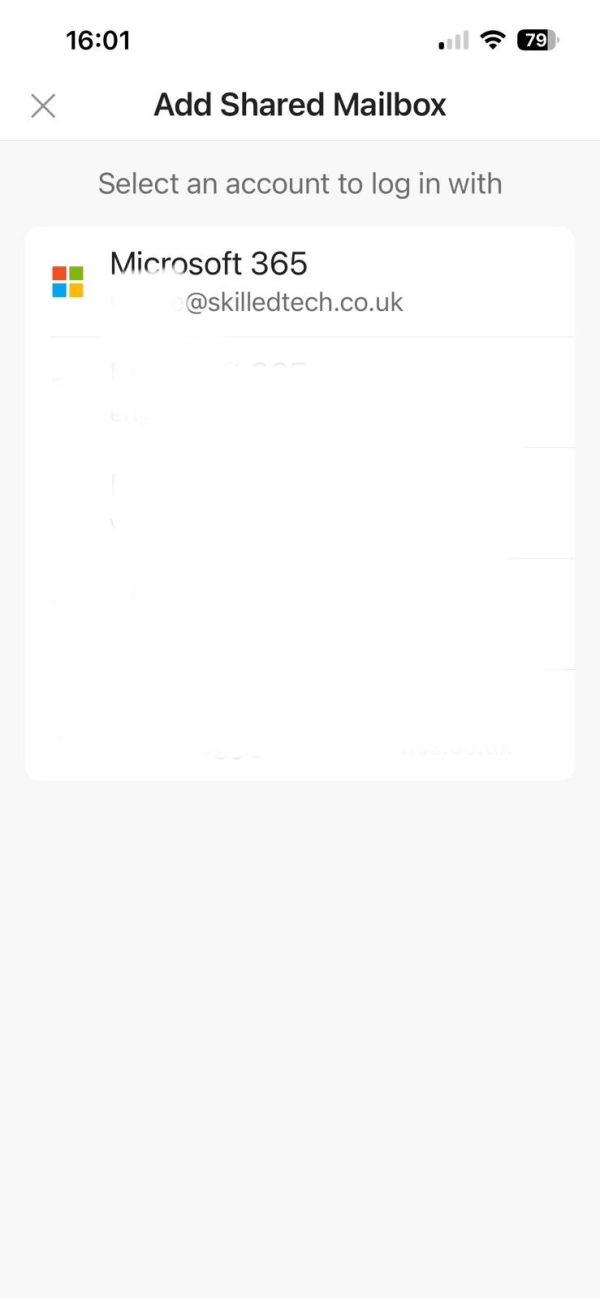
Step 5: Pick the right account (if you have more than one)
If you’ve only got one email account set up in Outlook, it’ll be used automatically. If you have more than one, you’ll be asked to select the account that has permission to access the shared mailbox.
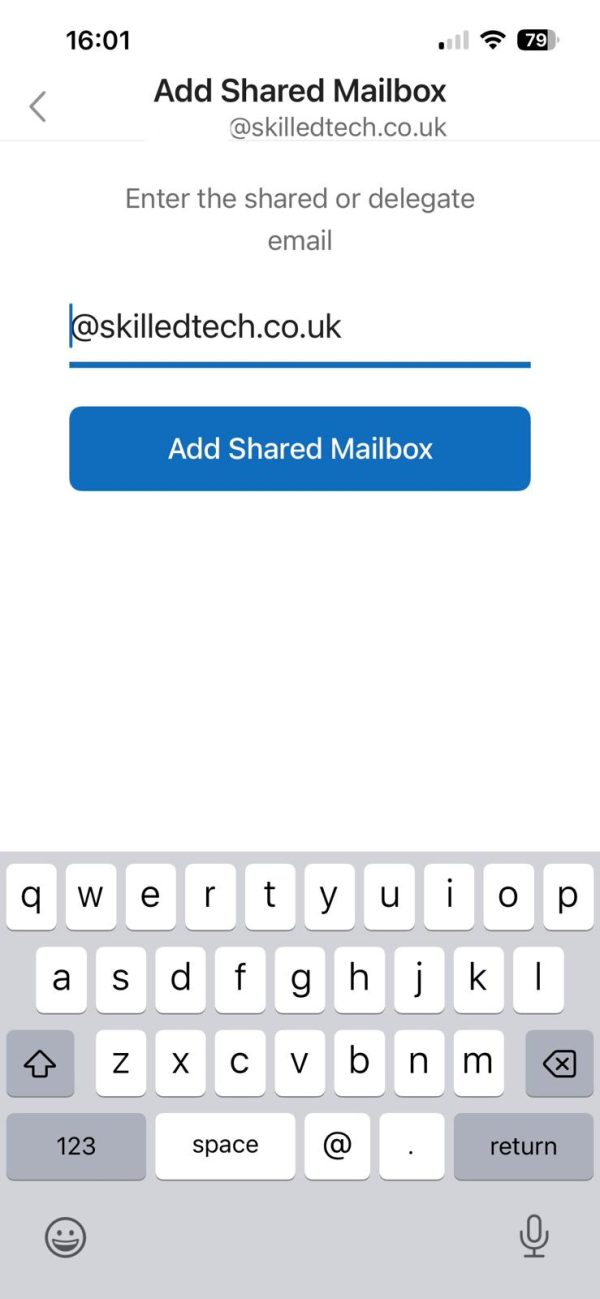
Step 6: Enter the shared mailbox address
Type in the shared mailbox’s email address (for example, info@yourcompany.co.uk) and tap Add Shared Mailbox. Outlook checks in the background that you’ve been given access — if you haven’t, you’ll see an error and it won’t be added.
Step 7: Find it in your account list
Open the side menu again and you’ll see the shared mailbox listed as a separate account underneath your own. Tap it any time you want to switch into it.